
Couch Gaming Mode with Niri and Home Assistant
May 15, 2026 -I like PC gaming, but I do not want to use a desktop from the couch.
Playing PC games on the TV should feel closer to a console: press one button, pick up the controller and play. Instead, I had to turn on the TV, switch inputs, enable the display, move audio and launch Steam Big Picture by hand.
So I made a couch gaming mode for Niri and wired it into Home Assistant to automate all of that.
On my Home Assistant dashboard I press a button and this happens:
- the TV turns on and switches to the right HDMI input
- my computer starts
- Niri enables the TV output
- audio switches to the TV
- Steam Big Picture starts
To leave couch gaming mode, I press the other button and everything is reverted.
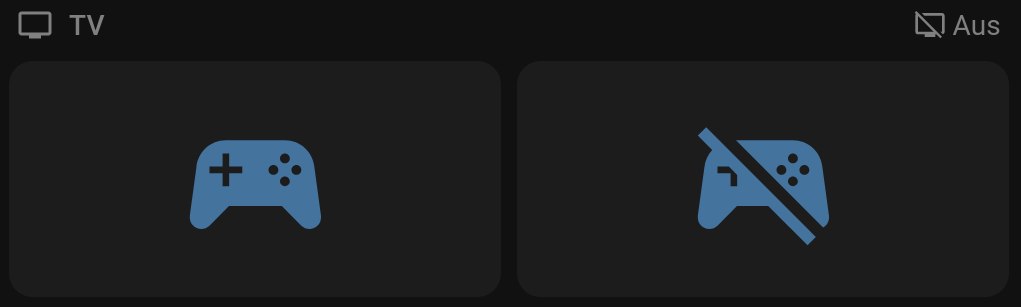
Home Assistant is optional, but it makes the setup more usable. The same idea should work with other compositors if you replace the Niri commands.
Requirements
You need:
- Niri on Linux
- Steam
jqandnotify-send- Audio controlled with
pactl - A TV connected to the computer, but not always enabled as an output
Overview
The setup has three parts:
The
couch-gamingscript turns the TV output on or off in Niri, switches audio sinks, starts or closes Steam Big Picture and sends a notification.The Niri window rule makes Steam Big Picture open on the TV output.
Home Assistant turns the TV on or off, switches to the correct HDMI input, starts the computer if needed and runs the script over SSH.
Part 1: couch-gaming script
Put the script somewhere in your $PATH. I use ~/.local/bin/couch-gaming.
#!/bin/bash
# This script allows easily switching between desktop usage and couch gaming mode.
# It turns on my TV output, adjusts the default audio sink and starts Steam Big Picture Mode.
# Everything is reverted afterwards.

set -euo pipefail

# Adjust it to match your setup according to the results of these commands:
# niri msg outputs | grep Output
TV="DP-1"
# pactl list sinks | grep Description
TV_AUDIO_DESCRIPTION="TV"
DESKTOP_AUDIO_DESCRIPTION="Speakers"
TV_AUDIO_WAIT_SECONDS=10 # increase this if your TV takes longer
# id -u
USER_ID="1000"

# Needed when invoked over SSH.
export DISPLAY="${DISPLAY:-:1}"
export NIRI_SOCKET="${NIRI_SOCKET:-$(find "/run/user/$USER_ID" -maxdepth 1 -name 'niri.*.sock' 2>/dev/null | head -1)}"

tv_is_on() {
    niri msg outputs | grep -A2 "($TV)" | grep -q "Current mode"
}

sink_name() {
    pactl list sinks | awk -v desc="$1" '
        /Name:/       { name=$2 }
        /Description/ { sub(/^[[:space:]]*Description: /, ""); gsub(/[[:space:]]+$/, ""); if ($0 == desc) print name }
    ' | head -1
}

switch_audio() {
    local desc="$1" wait="${2:-0}" sink

    for ((i = 0; i <= wait; i++)); do
        sink=$(sink_name "$desc")
        [[ -n "$sink" ]] && break
        sleep 1
    done

    if [[ -z "$sink" ]]; then
        notify-send "Couch Gaming 🛋️🎮" "Warning: audio sink '$desc' not found - switch audio manually"
        return
    fi

    pactl set-default-sink "$sink"
    pactl list sink-inputs short | awk '{print $1}' | xargs -r -I{} pactl move-sink-input {} "$sink"
}

close_steam_window() {
    local id
    id=$(niri msg -j windows | jq -r --arg title "$1" '.[] | select(.app_id == "steam" and .title == $title) | .id')
    [[ -n "$id" ]] && niri msg action close-window --id "$id"
}

ACTION="${1:-}"
case "$ACTION" in
    toggle)
        tv_is_on && ACTION="off" || ACTION="on"
        exec "$0" "$ACTION"
        ;;
    on)
        niri msg output "$TV" on
        switch_audio "$TV_AUDIO_DESCRIPTION" "$TV_AUDIO_WAIT_SECONDS"
        niri msg action focus-monitor "$TV"
        steam steam://open/bigpicture >/dev/null 2>&1 &
        notify-send "Couch Gaming 🛋️🎮" "Enabled"
        ;;
    off)
        close_steam_window "Steam Big Picture Mode"
        switch_audio "$DESKTOP_AUDIO_DESCRIPTION"
        niri msg output "$TV" off
        sleep 1
        close_steam_window "Steam"
        notify-send "Couch Gaming 🛋️🎮" "Disabled"
        ;;
    status)
        tv_is_on && echo '{"enabled":true}' || echo '{"enabled":false}'
        ;;
    *)
        echo "Usage: $(basename "$0") on|off|toggle|status"
        exit 1
        ;;
esac
Make it executable:
chmod +x ~/.local/bin/couch-gamingThe values at the top of the script are setup-specific. The comments above them show the commands I used to find mine. Adjust them to your needs.
Part 2: Niri
Make sure Steam Big Picture opens on the TV output:
window-rule {
    match app-id="steam" title="Steam Big Picture Mode"
    open-on-output "DP-1" # adjust it to your output
}
Before connecting this to Home Assistant, test the script and Niri rule directly:
couch-gaming on
couch-gaming off
# you can also use
couch-gaming toggle
Part 3: Home Assistant (optional)
I use Home Assistant to make this script easier to use and to manage the TV itself. My dashboard has two buttons: one enables couch gaming, the other disables it.
SSH Setup
Home Assistant calls the script over SSH with shell_command.
Therefore my computer needs to run an SSH server and Home Assistant needs to connect as an SSH client. I used the Arch Linux docs and Home Assistant docs to configure both.
Security note: Unrestricted SSH access from Home Assistant to your desktop is a potential security risk.
Configuration
Add the shell commands to configuration.yaml:
shell_command:
  couch_gaming_on: ssh -i /config/.ssh/id_ed25519 username@ip couch-gaming on
  couch_gaming_off: ssh -i /config/.ssh/id_ed25519 username@ip couch-gaming off
Change username@ip to your Linux user and the IP address of your computer. Make sure Home Assistant can run the SSH command without a password prompt.
Scripts
The shell commands only enable or disable couch gaming on the computer.
My Home Assistant scripts do the extra work around it:
- Turn the TV on
- Switch to the correct HDMI input
- Start the computer if it is off
- Run the shell command
This is part of my scripts.yaml:
couch_gaming_on:
  alias: Couch Gaming on
  sequence:
    - choose:
        - conditions:
            - condition: state
              entity_id: media_player.tv
              state:
                - "off"
          sequence:
            - action: media_player.turn_on
              target:
                entity_id: media_player.tv
            - wait_for_trigger:
                - trigger: state
                  entity_id: media_player.tv
                  to: "on"
              timeout: "00:00:30"
              continue_on_timeout: true
    - action: media_player.select_source
      target:
        entity_id: media_player.tv
      data:
        source: HDMI 4
    - choose:
        - conditions:
            - condition: state
              entity_id: binary_sensor.desktop # Ping (ICMP)
              state: "off"
          sequence:
            - action: button.press
              target:
                entity_id:
                  - button.desktop_on # Wake on LAN
            - wait_for_trigger:
                - trigger: state
                  entity_id: binary_sensor.desktop
                  to: "on"
              timeout: "00:02:00"
              continue_on_timeout: false
            - delay:
                seconds: 15 # wait for a fully booted computer
    - action: shell_command.couch_gaming_on

couch_gaming_off:
  alias: Couch Gaming off
  sequence:
    - action: media_player.turn_off
      target:
        entity_id: media_player.tv
    - action: shell_command.couch_gaming_off
Adjust the entities and HDMI input to match your setup.
Dashboard
Add one button for enabling couch gaming:
type: button
entity: script.couch_gaming_on
icon: mdi:controller
tap_action:
  action: toggle
Add another one for disabling it:
type: button
entity: script.couch_gaming_off
icon: mdi:controller-off
tap_action:
  action: toggle
Comments are powered by Giscus and stored on GitHub. Load comments to join the discussion.